A separate file and tab for every marketplace
Trendyol's title rules, Hepsiburada's description field, Amazon's bullet points and image expectations all differ. Most sellers manage those differences in separate spreadsheets, notes or directly in each seller panel.
The result is familiar: nobody is sure which title is live where, a fix made for one channel never reaches the others, and a new teammate opens several files to find the right text. As the catalog grows, that mess comes back as lost time and wrong listings.
Shared content once, channel differences separately
Every product in StokTakip has shared base content: brand, barcode, weight, dimensions, bullet points and an HTML description. You enter it once.
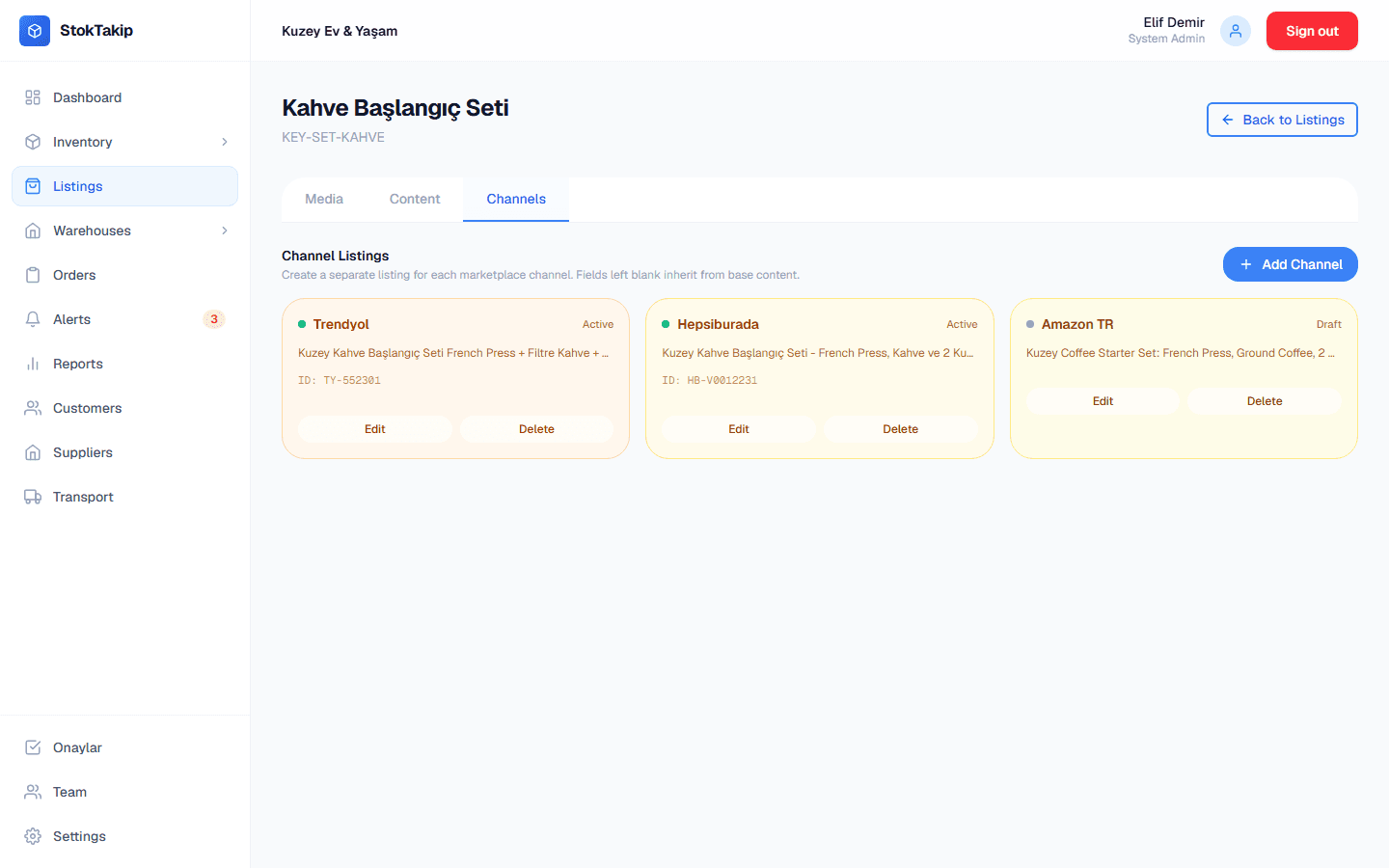
Then you open a channel record for each marketplace and write that channel's own title, bullet points and description. Fields you leave empty fall back to the base content, so you only write what is actually different.
Each channel record has a status (draft, active, paused, error) and the marketplace's product ID. The listings screen shows which channels each product is active on at a glance.
One important note: StokTakip doesn't currently connect to your marketplace accounts or publish listings. You prepare and organize the content here; listings, stock and prices are still updated in each marketplace's seller panel.
How it works
Pick a product
Search your products on the Listings screen, filter by category or channel, and open the one you want to edit.
Fill in the base content
On the Content tab, enter brand, barcode, weight, dimensions, bullet points and description.
Upload images
On the Media tab, upload images for the product or a specific variant and set their order.
Open channel records
On the Channels tab, add a record per marketplace, write its title, and save the status and marketplace product ID.
Details
- Supported channels: Trendyol, Hepsiburada, Amazon TR, n11, Çiçeksepeti and "other".
- Channel statuses: draft, active, paused, error.
- Empty channel fields fall back to the product's base content.
- Images per product or per variant; JPEG, PNG, WebP and GIF up to 5 MB each.
- Search by product name, SKU or category and filter by channel on the Listings screen.
In practice: keeping your content organized
Start with the base content. Getting brand, barcode, weight and dimensions right gathers the information every marketplace asks for first. Keep bullet points short, covering the product's three or four strongest points, and only change what truly needs to differ in each channel record.
When writing channel titles, keep each marketplace's length limits and conventions in mind: one channel may reward brand-first titles, another product-type-first. Because the titles sit side by side under the same product, comparing them is easy.
Keep channel statuses current. Marking a listing paused when you take it down on the marketplace stops your team from working off a dead listing, and saving the marketplace product ID makes it quick to find the right listing for customer questions or returns.
Put the main photo first and upload separate images for each color or pattern of a product with variants, so whoever prepares content never hunts for the right variant's photo.
Frequently asked questions
What happens to fields I leave empty on a channel?
Empty title, bullet point and description fields use the product's base content. You only fill in the fields you want to differ on that channel.
What is the channel status for?
The status (draft, active, paused, error) is your own record of the listing on that marketplace. StokTakip doesn't connect to the marketplace, so you update it yourself and see what's live where in one place.
Can variants have their own images?
Yes. You can upload and order images for the whole product or for a specific variant.
I sell on a channel that isn't listed. What can I do?
Use the "other" channel type to keep content for your own website or another marketplace.
Related features
Product variants
Generate variants from attributes like color and size, with their own SKU, price and stock.
Learn moreBundle stock tracking
Bundle stock calculated from its components, deducted from components when sold.
Learn moreMulti-warehouse management
Stock per warehouse, zones, capacity and transfers between warehouses.
Learn more